Ads

Ads

Results for ANDRIOD APPLICATIONS

4 Of The Best WhatsApp Tricks And Tweaks You Can Use On Android

May 27, 2017
There is no need to start introducing whatsapp if at all you don't know what WhatsApp is, then i must assume you are still in the primitive of ideology. WhatsApp, is used by billion of people in the world every. It is the Most loved messaging app but, still most people have not come across some useful tips and trick about it.
This morning, I will be sharing 4 of the best WhatsApp tips and tricks you can use on your android device.

WhatsApp-Best-Tips

4 Of The Best WhatsApp Tricks And Tweaks You Can Use On Android

Marking a Favorite WhatsApp Message
Maybe you need to save an important message or chat on your WhatsApp chats.
Just go to the conversations, long press the message then you will will the star icon

Listening Discreetly to WhatsApp Messages?
When I receive voice message on WhatsApp and i start playing it, I notice covering the android sensor will stop the voice message. But do you know what? hold the phone to your ear as if you want to receive a call then you hear your voice message from the small speaker.

Finding Individual Contacts and Messages
If you need the details of a particular contact on your WhatsApp or even messages you don't need to starting scrolling from top to the end just click the magnifier icon at the top menu to do that.

Sending Location or a Contact Number
You might want to send your location or even a friends contact to another person just go to  chats click on the paper-clip icon you will see contact and location there.

This are just 4 tips and trick for WhatsApp more still loading don't leave without showing us little appreciation. Kindly share this post with your friends on social medias.

Take few minutes to share this post on social media
4 Of The Best WhatsApp Tricks And Tweaks You Can Use On Android 4 Of The Best WhatsApp Tricks And Tweaks You Can Use On Android Reviewed by Unknown on May 27, 2017 Rating: 5

How To Pause WhatsApp Status For A Very Long Time Without 5 seconds Limit

May 27, 2017
The new feature whatsapp introduced is very exciting and makes whatsapp less boring. Viewing your contact's status updates might be frustrating sometimes as you might not be able not read the full caption of the picture before it moves to the next one.
whatsapp-status-tips-and-tricks
How To Pause WhatsApp Status For A Very Long Time Without 5 seconds Limit


this evening, I will quickly show you how to pause your contact's whatsapp status for a long time.
It is very easy just hold down the picture you want to pause. It will become drag-able around your screen just move it to your convenient position. Once you are done reading it, you can then leave it and do same for other pictures.
Hope this helps? don't go without using the share button. 

Your friends, also needs this helpful information don't be selfish share it with them.

Take few minutes to share this post on social media
How To Pause WhatsApp Status For A Very Long Time Without 5 seconds Limit How To Pause WhatsApp Status For A Very Long Time Without 5 seconds Limit Reviewed by Unknown on May 27, 2017 Rating: 5

How To set Up Speech To Text In Android

May 27, 2017
This tip is very useful, and very easy to use. It is mostly useful while driving as you can't be typing while driving. So, the best option is to convert your speech to text.
This feature, came with Android Os and does not require you download any third party app to make it work.
howtosetupspeech-to-textinandroid1-24-1495622211

  • Open any of your app that support keyboard
  • At the corner, tap the microphone button 
  • Once you get "speak now" start dictating the words you want to convert to text
  • If you want to input punctuation mark such as comma, full stop, you also need to dictate it. 
  • For line spacing and paragraphs, dictate enter "new line" "new paragraph"
How To set Up Speech To Text In Android How To set Up Speech To Text In Android Reviewed by Unknown on May 27, 2017 Rating: 5

WPS Connect Android Application – WiFi Hacking

May 27, 2017


How to Setup WPS Connect?

First let’s root your poor phone.
1. Download KingRoot
From here: http://www.kingroot.net/
or here: http://forum.xda-developers.com/android/…0-t3107461
Use google for more Download Links
2. Open kingroot, Click the mystery button and wait.[you may need internet for this]
3. If you see a green check then you rooted your phone.
If you didn’t see the green check,make sure you are connected to internet+keep trying.
Note:After that, kingroot may ask you to install kinguser to take control of root permessions [king user is like Super SU]
4. Download WPS Connect from playstore
Link: https://play.google.com/store/apps/detai…wpsconnect
5. Open it,Would ask for a root permission click allow.
6. Click on the refresh icon up you should be able to see some wifi to hack. click on the wifi you want to hack, choose a pin, wait.
Note: This wouldn’t hack 100% the wifi you want.
What you can do to get more connections:
1. Drive with your car near your house so you can locate more wifi routers
2. Try to hack every single one of them,try different wps pins.
3. Once you connect to a one go for another
This way,When you are near that wifi your phone will Automatically connect to that wifi.
Cool right?


WPS Connect Android Application – WiFi Hacking WPS Connect Android Application – WiFi Hacking Reviewed by Unknown on May 27, 2017 Rating: 5

Chrome makes it less demanding to download site pages when your server bites the dust

May 27, 2017

Google is finding a way to ensure you don't misplace your thought process since you've lost your association.

A year ago, Chrome picked up a download catch that let you spare website pages for review when your association is spotty, and Google says around 45 million of them are downloaded each week. That is the reason in the most recent variant of Chrome for Android, Google is making it considerably less demanding to spare site pages for disconnected perusing.

Kindly share this post. Do not forget to comment, like our page and also subscribe for more updates 

Rather than tapping the flood menu and hitting the download catch, you'll now get the choice when you long-push on a connection. What's more, Chrome is likewise making it less demanding to discover things you've already downloaded. When you open another tab in Chrome now, you'll see a rundown of articles that you have downloaded labeled with another disconnected identification. What's more, Chrome will likewise show the majority of your current downloads right side on the page for speedier access to the things you need to peruse. You'll additionally have the capacity to see and oversee downloads on the Downloads page.

In any case, the best new component is one you won't really be utilizing all that frequently. Whenever you see Chrome's disconnected dinosaur, another "Download Page Later" catch will give the idea that will line the URL for download when an association is reestablished. At that point it will in a flash end up noticeably accessible in your download list so you won't overlook whatever it was you needed to peruse.

The new form of Chrome is taking off to Android clients, yet in the event that you're not seeing it, you can side-stack the Google-marked APK from APKMirror.

The effect on those with poor associations: While our disconnected battles are winding up plainly less and less basic here in the U.S., they're as yet a major ordeal in many parts of the world. These new changes will guarantee that whatever you're perusing, inquiring about, or watching won't get lost because of an association that stops.

This story, "Chrome makes it less demanding to download site pages when your association kicks the bucket" was initially distributed by Greenbot.
Chrome makes it less demanding to download site pages when your server bites the dust Chrome makes it less demanding to download site pages when your server bites the dust Reviewed by Unknown on May 27, 2017 Rating: 5

How To Use PdaNet Pro To Share Internet Connection To Your Laptop Even If Using Vpn

May 02, 2017
PDANet+ is one of the top Android apps using for sharing tunnel VPN connection, it is to stop some tethering limitations on your Android device and allows you to connect all your tunnel VPN network to any PC or device via USB Tethering or WiFi Hotspot.

Settings for Pdanet+ on Android to use Internet connection through USB Tethering

This one is for those that wants to connect using USB. If you want to do so using Hotspot, scroll down.

1. Download
Download Pda Net Pro For Andriod
Download Pda Net For Windows.exe


2.  Run the installed PDANet+ app on your Android.

3. Also Install The Pda Net For Windows Via your Pc
4.Launch the PDANet+.apk on your Android, there are three options available :


5. Make sure you Enable USB debugging on your Android (from the “Developer Options”).


6. Tap and Activate the “ USB Tether ”option for best reliability and connect your USB cable to the PC

7.  confirm that it is connected to the phone.

8. Open the PDANet+ menu from the notification bar of your Windows and click on “ Connect Internet (USB) ”.

9. It will verify and authenticate your connection automatically and you will be connected via USB.


10. You Are Good To Go
How To Use PdaNet Pro To Share Internet Connection To Your Laptop Even If Using Vpn How To Use PdaNet Pro To Share Internet Connection To Your Laptop Even If Using Vpn Reviewed by Unknown on May 02, 2017 Rating: 5

Twitter Lite Makes You Access Your Timeline With Low Data Usage

April 20, 2017
For those that uses twitter very well, data useage might turned out to be an issue because; it will load up stories in your timeline, multimedia, GIFs, videos and the likes which consumes a lot of data.
twitter-lite

Facebook also introduced a lite app for the low data users to save them the cost of buying data often. Twitter knows that not everyone can afford to gulp on data so they introduced the lite version.

RecommendedDelete Facebook App From Your Smartphone And Save 20% Your Battery

Twitter Lite is a mobile web version of the site which offers a minimalist UI and, in data saver mode, uses tricks live image previews to save on the initial data load instead of automatically loading each full image or video (and they’ll also tell you how much data it’ll cost to load that content).
Twitter Lite Makes You Access Your Timeline With Low Data Usage Twitter Lite Makes You Access Your Timeline With Low Data Usage Reviewed by Unknown on April 20, 2017 Rating: 5

How To Fix Registration Error And Bugs On Spotify+ Premium Mod APK

April 20, 2017
This post is for the Spotify lover, Those that have chosen to explore the world of music at the go with their smartphone. I'll not go deep explaining what Spotify does but it is expedient you know Spotify is used for streaming podcasts, music of different genres and many more.
Spotify gives a unique experience, it gives you access to millions of songs at the go ranging from the old favorites to the latest hit.
PhotoGrid_1492102337735

But i have been receiving a lot of mail lately concerning Spotify. Many people complained that they got an error message while trying to register Spotify.
Do you know that Spotify is not yet available in Nigeria? That is the main reason you keep getting error while trying to register. In this post you learn how to register for a free account and how to use premium freely


  • Download  Spotify premium cracked Here
  • Download TouchVPN from playstore
  • Install the 2 apps posted above now launch touch VPN then choose USA as your location
  • Once connected, Launch spotify then register your account that will fix the error message you have been getting while trying to register.
How To Fix Registration Error And Bugs On Spotify+ Premium Mod APK How To Fix Registration Error And Bugs On Spotify+ Premium Mod APK Reviewed by Unknown on April 20, 2017 Rating: 5

Windscribe Offers 50GB VPN Service Freely Monthly

April 20, 2017
I started looking for cracked version of VPN some days back now just to enjoy premium servers. Although i was able to get one but i downloaded much virus before getting the real one. OperaVPN is unlimited but lately the servers seems to be dead as it takes longer time to connect. So, if you need a reliable VPN for lifetime which will give you 50GB freely for one month then consider checking windscribe.
Windscibe is a reliable VPN that encrypts your browsing activity, blocks ads, and unblocks entertainment contents with 50GB freely monthly giving  8 countries and locations.
cover

How Can I Get My Free 50GB VPN Service?

  • Register a free account Here input your vaild email address then, a verification link will be sent to you via email 
  • click on the link from your email to verify your account.
  • Use this coupon code 50GBFREE to get free VPN service for 1 month
  • Download the VPN client from their website choose your preferred country then connect
Windscribe Offers 50GB VPN Service Freely Monthly Windscribe Offers 50GB VPN Service Freely Monthly Reviewed by Unknown on April 20, 2017 Rating: 5

Top 5 Best File Manager For Your Android Device

April 17, 2017

Top 5 Best File Managers For Your Android Smartphone

#1 ES File Explorer

ES Datei Explorer
  • ES Datei Explorer Screenshot
  •  


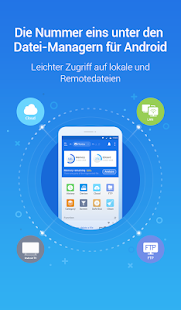
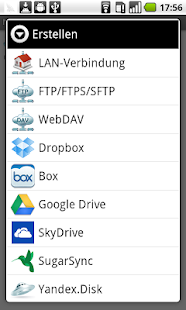
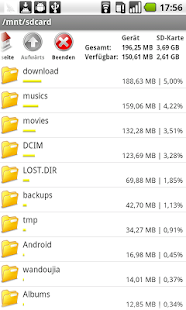
  • ES File Explorer is one of the best Android file explorer manager Android app. This is not just a file manager it’s much more. With this manager, you can easily access your Cloud Drives like Dropbox, Google Drive, Skydrive, and Box. ES File Manager come with built-in Remote File Managerand Application Manager. With ES, you can extract and compress files in RAR and ZIP format. You can also access ROOT files and folders with ES File Explorer app. ES File Explorer is all in one file explorer that comes with many built-in tools.

    Features Of Es File Explorer

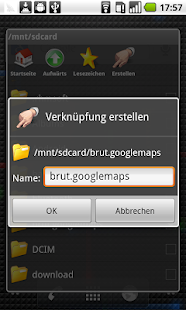
    • Application Manager: Categorize, uninstall, backup, and create shortcuts to your apps
    • Remote File Manager: When this feature is enabled, you can manage files on your phone from your computer
    • Built-in ZIP and RAR support: Allows you to compress and decompress ZIP files, unpack RAR files, and create encrypted (AES 256 bit) ZIP files
    • Built-in viewers and players for various file types: Including photos, music, and videos; supports third-party applications such as Quick Office for better productivity

    #2 AnTek Explorer

    AntTek Explorer
    Price: Free+
    • AntTek Explorer Screenshot
    •  
    • AntTek Explorer Screenshot
    •  
    • AntTek Explorer Screenshot
    •  
    • AntTek Explorer Screenshot
    •  
    • AntTek Explorer Screenshot
    •  
    • AntTek Explorer Screenshot
    •  
    • AntTek Explorer Screenshot
    •  
    • AntTek Explorer Screenshot
    •  
    • AntTek Explorer Screenshot
    •  
    • AntTek Explorer Screenshot
    •  
    • AntTek Explorer Screenshot
    •  
    • AntTek Explorer Screenshot
    •  
    • AntTek Explorer Screenshot
    •  
    • AntTek Explorer Screenshot
    •  
    • AntTek Explorer Screenshot
    •  
    • AntTek Explorer Screenshot
    •  
    • AntTek Explorer Screenshot
    •  
    • AntTek Explorer Screenshot
    •  
    • AntTek Explorer Screenshot
    •  
    • AntTek Explorer Screenshot
    •  
    • AntTek Explorer Screenshot
    •  
    • AntTek Explorer Screenshot
    •  
    • AntTek Explorer Screenshot
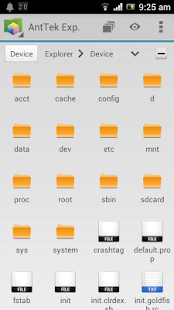
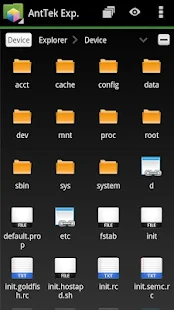
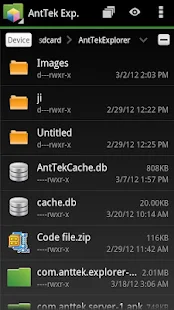
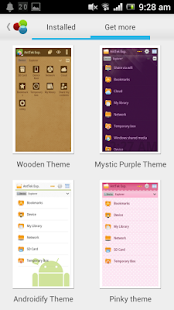
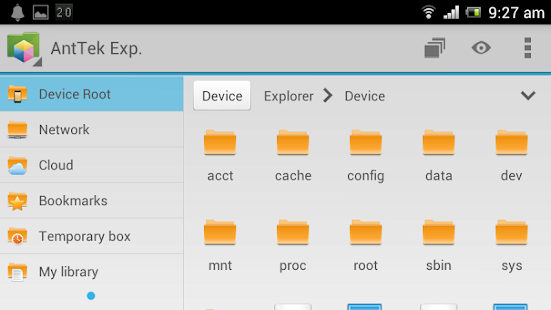
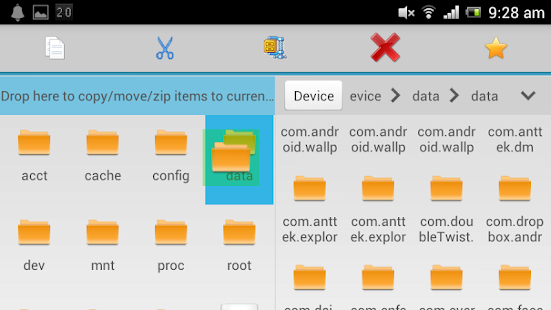
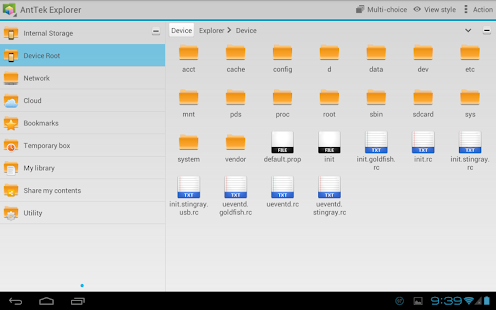
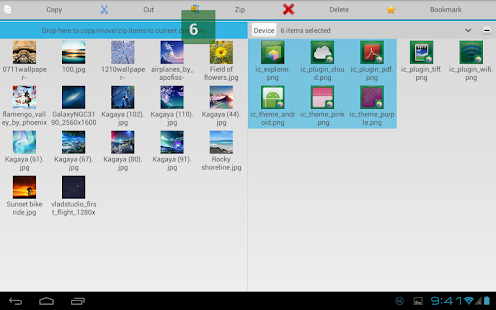
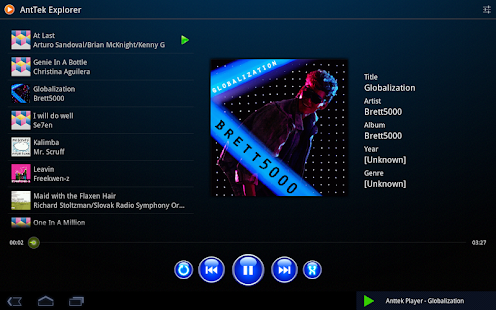
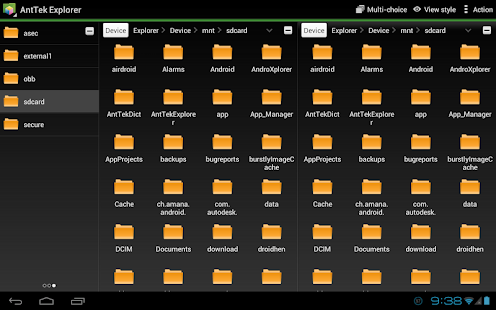
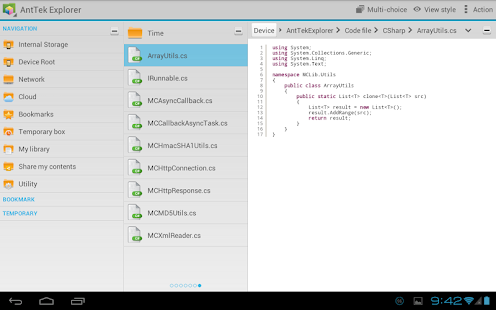
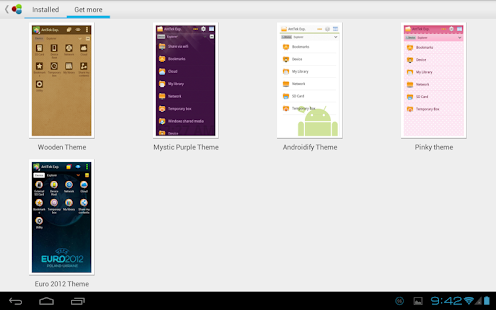
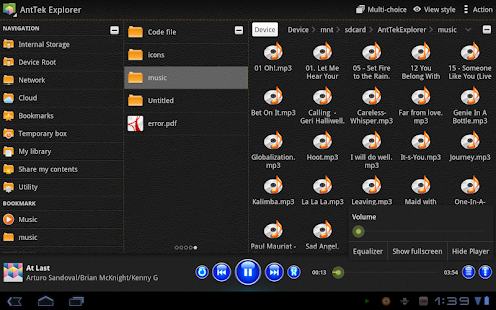
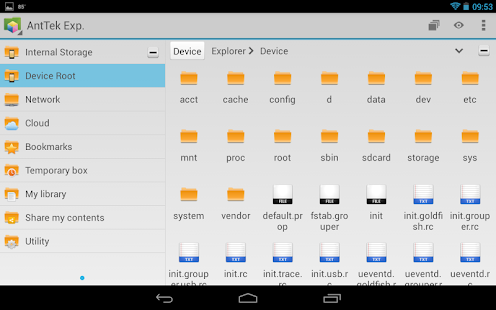
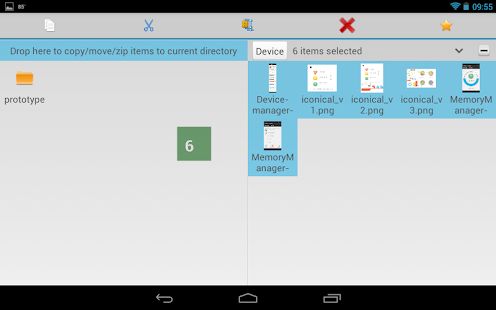
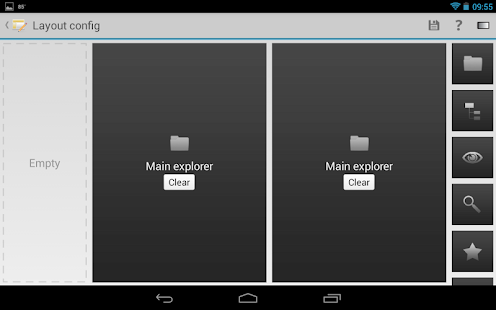
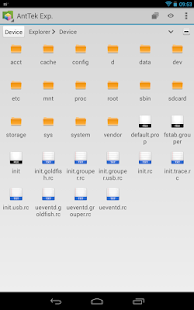
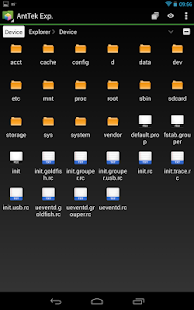
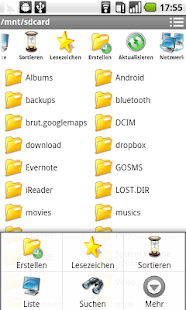
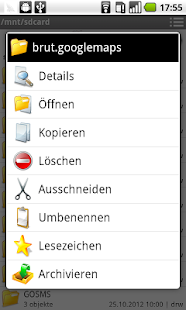
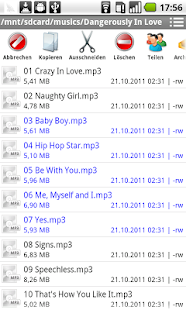
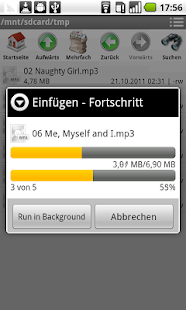
    Antek is also a good file manager for Android phones. Antek special feature is Drag and Drop anywhere feature. You can drag one file to another folder from drag and drop feature like Windows PC. Usually, this browser also supports cut, copy, paste, zip and all other common features. You can also browse root directory from this file manager in Android phone. With AnTek, you can view pictures, music, and documents (pdf and doc). So download this Android file manager app and so something new in your Android mobile.

    Features:

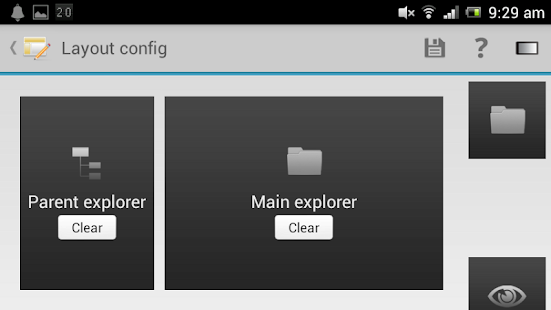
    • Seamlessly copy/move files from different panels or from local to server
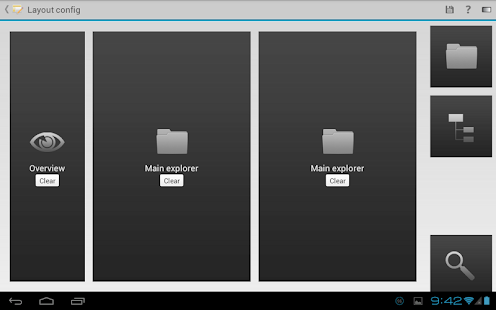
    • 6 different panels to select: Overview, temporary box, etc.
    • Manage remote file server: Samba/CIFS/Window shared/FTP/FTPs, WebDAV
    • Super cool music player with full equalizer
    • Browse private partitions (i.e. /data, /system) as regular files on SDCard

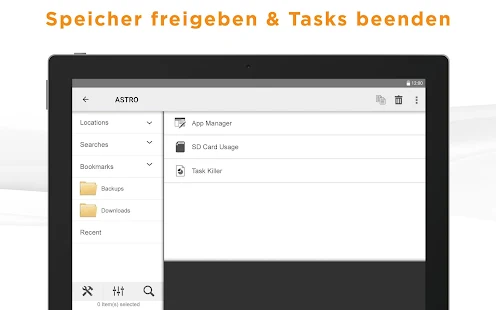
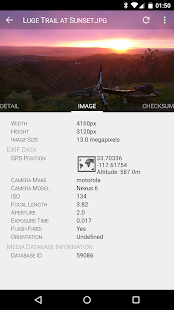
    #3 Astro File manager

    ASTRO Dateimanager
    • ASTRO Dateimanager Screenshot
    •  
    • ASTRO Dateimanager Screenshot
    •  
    • ASTRO Dateimanager Screenshot
    •  
    • ASTRO Dateimanager Screenshot
    •  
    • ASTRO Dateimanager Screenshot
    •  
    • ASTRO Dateimanager Screenshot
    •  
    • ASTRO Dateimanager Screenshot
    •  
    • ASTRO Dateimanager Screenshot
    •  
    • ASTRO Dateimanager Screenshot
    •  
    • ASTRO Dateimanager Screenshot
    Astro file manager is also called a cloud file manager. You can easily move one file to another cloud storage from this Android app.  If you store your precious data in cloud storage and want to move your data to another cloud storage try Astro file manager Android app. You can easily add cloud storage account like Dropbox, Google Drive, Box, and Skydrive.

    #4 File Explorer FX

    File Explorer
    Price: Free+
    • File Explorer Screenshot
    •  
    • File Explorer Screenshot
    •  
    • File Explorer Screenshot
    •  
    • File Explorer Screenshot
    •  
    • File Explorer Screenshot
    •  
    • File Explorer Screenshot
    •  
    • File Explorer Screenshot
    •  
    • File Explorer Screenshot
    •  
    • File Explorer Screenshot
    •  
    • File Explorer Screenshot
    I like this File Explorer because this its UI is made with the latest material design. The design of this File manager is very eye catchy. File Explorer includes all basic features that you want from any file manager.

    With File Explorer, you can

    • Text Editor with Undo/Redo history, Cut/Copy/Paste, Find, and Pinch-to-zoom
    • Binary (Hex) Viewer
    • Image Viewer
    • Media Player, pop-up Audio Player
    • Zip, Tar, GZip, Bzip2, and 7zip Archive Extractor / Creator (.zip, .tgz, .tar.gz, .tar.bz2, .7z)
    • RAR Extractor (UnRAR)
    • Shell Script Executor

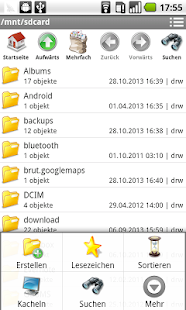
    #5 File Manager (Explorer)

    Datei Manager (File Manager)
    • Datei Manager (File Manager) Screenshot
    •  
    • Datei Manager (File Manager) Screenshot
    •  
    • Datei Manager (File Manager) Screenshot
    •  
    • Datei Manager (File Manager) Screenshot
    •  
    • Datei Manager (File Manager) Screenshot
    •  
    • Datei Manager (File Manager) Screenshot
    •  
    • Datei Manager (File Manager) Screenshot
    •  
    • Datei Manager (File Manager) Screenshot
    File manager explorer UI is like Lollipop OS. When you install this File manager on your Android mobile, you get latest Android design material and friendly functions. File Manager explorer supports all type of files in your Android mobiles with many features like cut, copy, paste, compression and decompression.

    Features:

    • Cut, copy and paste files
    • List and grid view for file explorer
    • Compression and decompression support
    • Supports both local and remote (LAN/SMB) file systems
    • Supports FTP, FTPS, SFTP and WebDAV
    • Play streaming media from LAN/FTP/WebDAV/Cloud without downloading
    • Supports FTP file sharing, access remote files wirelessly
    • Supports file shortcuts on the home screen for easy access
    • Built-in text editor, image gallery, and SWF player
    Top 5 Best File Manager For Your Android Device Top 5 Best File Manager For Your Android Device Reviewed by Unknown on April 17, 2017 Rating: 5

    ads 728x90 B
    Powered by Blogger.